Amazon Fire TV & Android TV
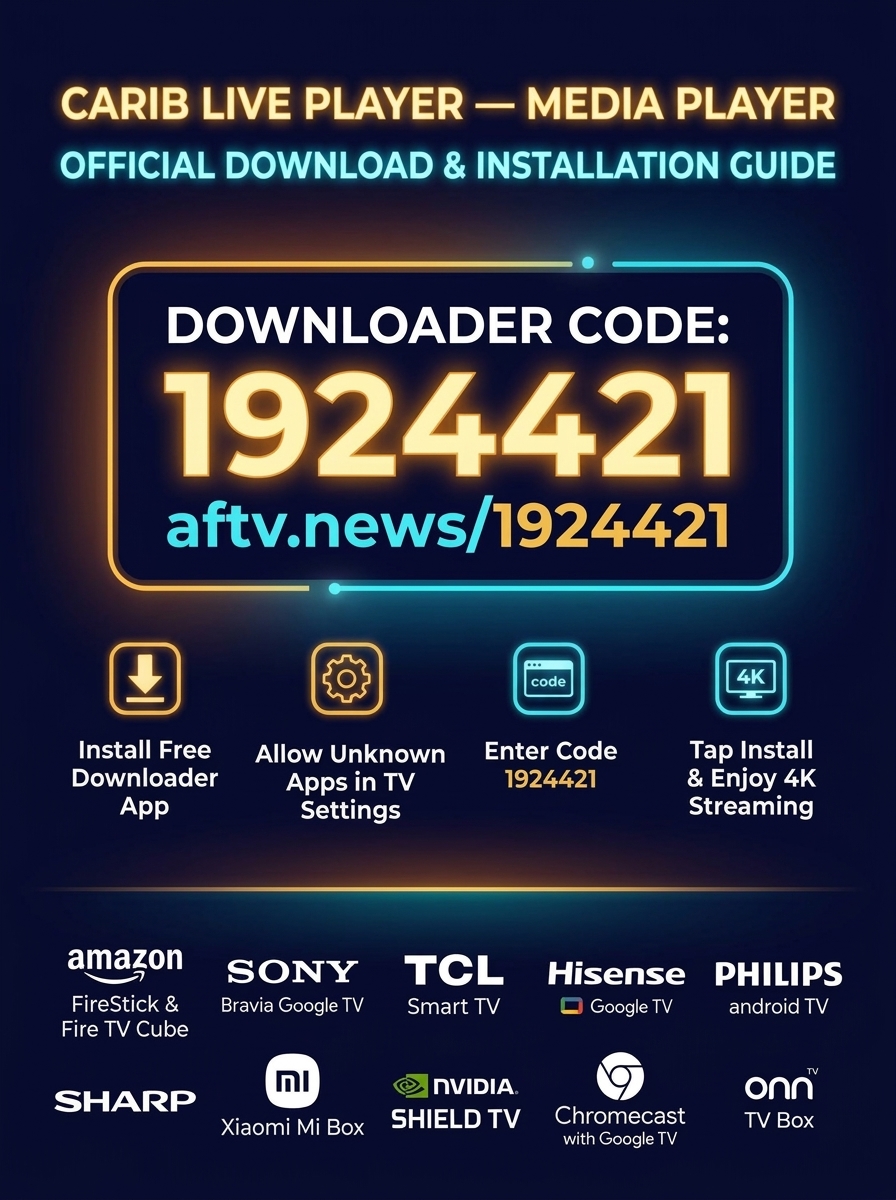
Follow these 4 simple steps to install Carib Live Player — Media Player on any FireStick, Google TV, or Android TV.
On your Fire TV or Android TV home screen:
- Go to the Find / Search icon.
- Type Downloader (the orange icon created by AFTVnews).
- Click Download / Get to install it for free.
Before installing, enable permissions on your TV:
- Navigate to Settings → My Fire TV (or Device & Software) → Developer Options.
- Select Install Unknown Apps.
- Find Downloader and set it to ON.
Note: If Developer Options is hidden, go to Settings → My Fire TV → About → click your Fire TV name 7 times rapidly to unlock it.
Open the Downloader app on your TV, select the URL/Code box on the home screen, and enter either the quick number code or the short link:
Type 1924421 directly into Downloader and click Go.
Click Go. The official Carib Live Player APK will begin downloading immediately.
Once the download finishes, a prompt will appear. Click Install, then click Open.
Enter your 6-digit subscriber activation code or scan the QR code to enjoy ultra-fast 8K playback, Leanback TV remote navigation, and the full live EPG guide.